Build an interactable door
Make a door whose swing is controlled by Python. In Unreal Editor, give it a mesh and an opening angle, then use a Blueprint graph to handle a key press and respond when the door moves.
Start with a project that has UnrealPy enabled and an open test level. The Beacon tutorial shows how to create, open, and place a Python class.
Create the Python door
- In the Content Browser, select your Content folder and choose Add → New Python Class....
- Pick Actor as the parent. Enter
Dooras the name, keep the folder set toscripts, and click Create Class. - Replace the generated code in
Python/scripts/door.pywith the example below and save it.
import ue


@ue.uclass
class Door(ue.Actor):
    hinge = ue.component(ue.SceneComponent)
    panel = ue.component(ue.StaticMeshComponent, parent="hinge")
    open_angle: float = ue.uproperty(90.0, category="Door")

    def post_init(self) -> None:
        self._is_open = False

    @ue.udelegate
    def on_door_toggled(self, is_open: bool) -> None: ...

    @ue.ufunction
    def toggle_door(self) -> None:
        angle = -self.open_angle if self._is_open else self.open_angle
        self.add_actor_local_rotation(ue.Rotator(0.0, angle, 0.0), False, True)
        self._is_open = not self._is_open
        self.on_door_toggled.broadcast(self._is_open)
The Hinge component sets the pivot. Panel is attached to it, so its offset can move the mesh away from the pivot. Open Angle is editable in Unreal, Toggle Door is callable from Blueprint, and On Door Toggled tells Blueprint which state the door reached.
Give the door a mesh in Blueprint
-
In Python Classes → scripts, right-click Door and choose Create Blueprint class based on Door. Name the Blueprint
BP_Doorand create it in your Content folder.
-
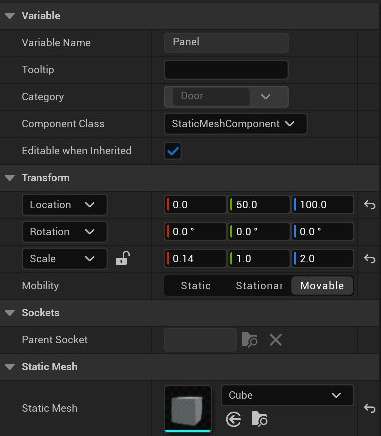
In the Blueprint Editor’s Components panel, select Panel. In Details → Static Mesh, select Cube from
/Engine/BasicShapes. If it doesn’t appear, click the gear in the picker and enable Engine Content under Show. Search forCube Path:/Engine/BasicShapesto narrow the list. -
Set Mobility to Movable. Under Transform, set the relative Location to (0, 50, 100) and Scale to (0.14, 1, 2). The cube is 100 cm on each side, so this puts the hinge on the edge of the door.
-
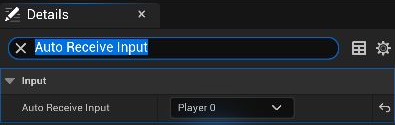
In Class Defaults, search for Auto Receive Input and set it to Player 0. This lets the placed door receive the key directly for the one-door example.
Wire the interaction
- Open EventGraph. Right-click an empty area, search for E, and choose the E keyboard event under Input → Keyboard Events.
- From the Pressed execution pin, search for Toggle Door and add it. Use the inherited function whose target is self.
- Add Bind Event to On Door Toggled and connect its execution input to Event BeginPlay. The bind node’s target is self.
- Drag from the red Event pin on the bind node and choose Add Custom Event. Name it
DoorToggled. Connect the custom event’s execution output to Print String and set its text toDoor toggled. Leave Print to Log enabled so the message also appears in Output Log. - Compile and Save.
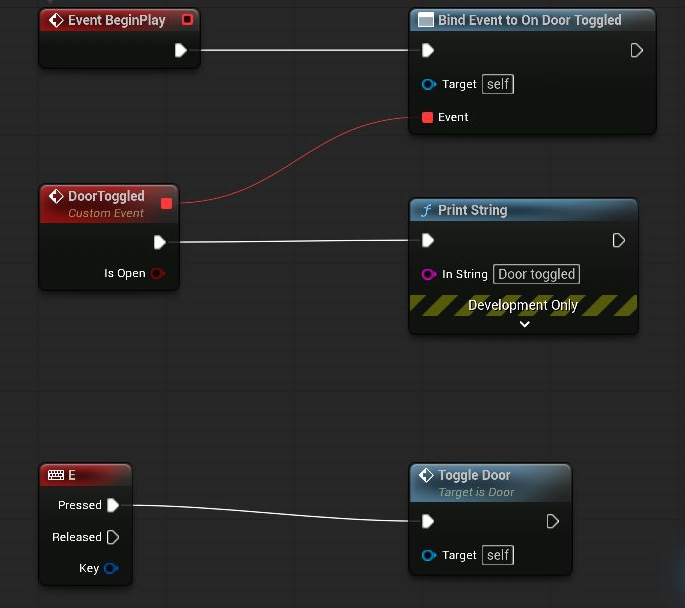
The key event calls Python. After it rotates the door, Python broadcasts On Door Toggled. The custom event receives the Is Open pin, which you can use later to pick a sound or update a light.
Play and tune
- Drag one BP_Door from the Content Browser into the level. Place it upright where you can see it from the player start.
-
Select the door in the Outliner. In Details → Door, set Open Angle to
60degrees.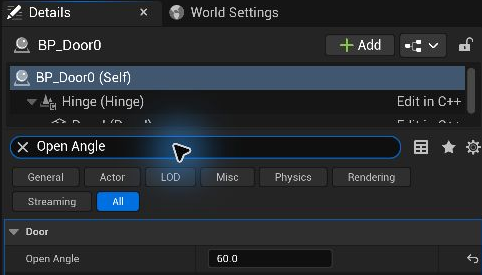
-
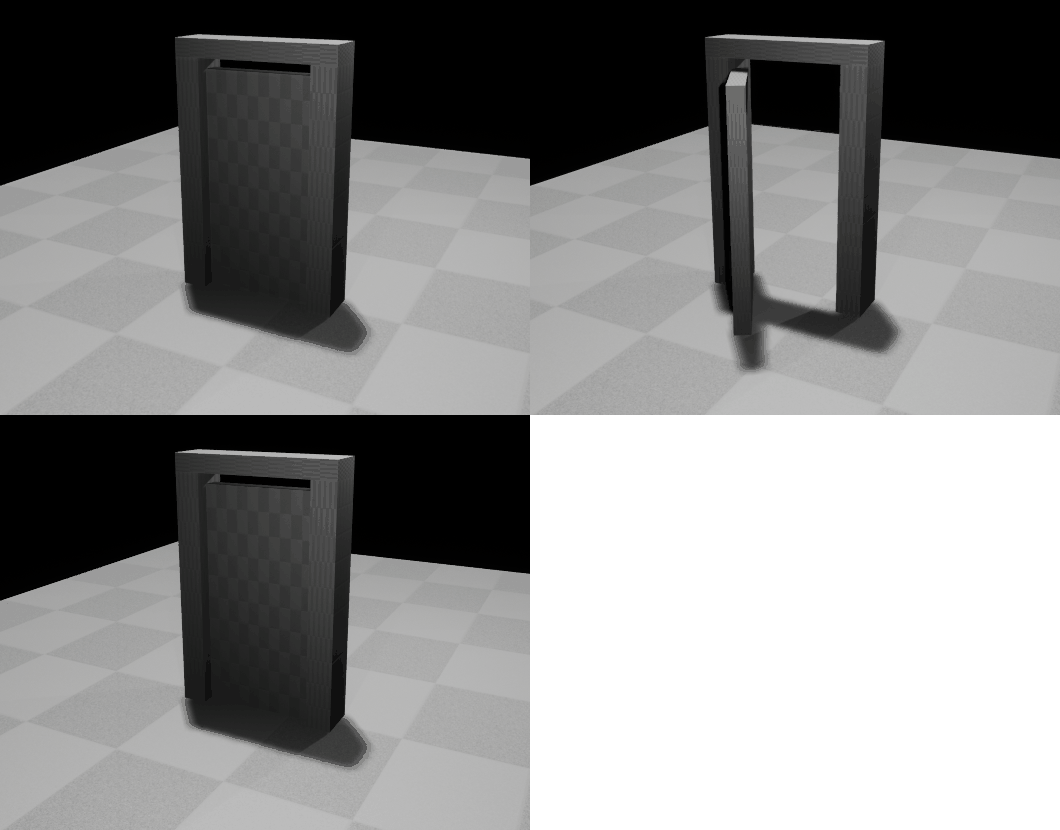
Press Play, focus the viewport, and press E. The panel swings open and the Blueprint prints
Door toggled. Press E again to close it. Stop play and save the level.
Watch the door open and close
Continue with the door test and a packaged smoke test.