Debugging
Read the Python error
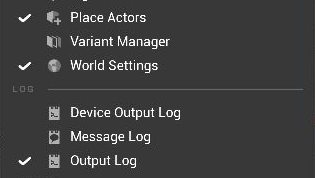
Open Window → Output Log, then repeat the action that failed. For gameplay events, press Play and reproduce the issue in the level. Search the log for your class name or Traceback to find the exception and the script line where it happened.
Add a log entry when you need to see whether an event ran or what a property contained:
def begin_play(self) -> None:
    ue.log(f"{self.get_name()} started with health {self.health}")
ue.warning() and ue.error() log at higher severity.
A change did not appear
- Save the Python file and check Output Log for errors from the reload.
- Confirm Auto Reload Scripts is enabled in UnrealPy project settings.
- If you changed an event like
begin_play, stop and restart Play In Editor to run it again. For a Blueprint that uses the changed code, open it, Compile, and save it.
A class does not show up
If Python Classes is hidden, open Settings → Show in the Content Browser and enable Python Classes. If an actor is still missing from Place Actors, check that its class derives from ue.Actor, uses @ue.uclass, and was discovered. By default, classes under Python/scripts/ are discovered automatically.
For a Blueprint with an attached script, open the Blueprint's Script menu to inspect the binding. Use Choose another script file… if the file moved.
The class cache rebuilds on every launch
The editor rebuilds the cache when class definitions change. If it keeps rebuilding, open Saved/Logs/ScriptClassCache.log and fix any errors in the files it failed to import. Reopen the project to retry.