Your first Python actor
Make a Beacon actor that prints a message when you press Play. Start in Unreal Editor with UnrealPy enabled.
Create Beacon in the Content Browser
-
Open the Content Drawer and select your project's Content folder. Click Add, search for New Python Class, and choose New Python Class....

-
Choose Actor as the parent class so you can place Beacon in a level.
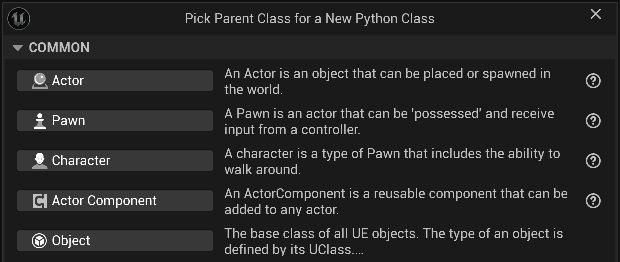
-
Enter
Beaconin Name. Leave Folder (Python Classes) set toscripts. The dialog shows the destination,Python/scripts/beacon.py.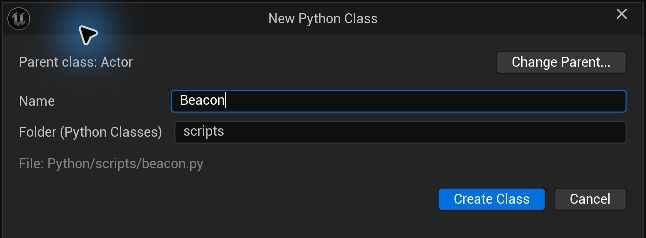
-
Click Create Class. UnrealPy generates the file, registers Beacon, and opens the script in your text editor. In a fresh project, it also creates the
Python/scripts/folder. Beacon is available immediately under Python Classes.
To reopen the script, double-click Beacon under Python Classes → scripts in the Content Browser. If the folder is hidden, enable Python Classes in Content Browser Settings. If the file doesn't open, check your text editor setting.
Give Beacon a message
Replace the starter code in the generated file with this version and save. The @ue.uclass decorator exposes Beacon to Unreal and ue.uproperty makes Message editable in Details.
import ue


@ue.uclass
class Beacon(ue.Actor):
    message: str = ue.uproperty(
        "Beacon is online",
        category="Beacon",
    )

    def begin_play(self) -> None:
        ue.log(self.message)

    @ue.ufunction(pure=True, category="Beacon")
    def get_message(self) -> str:
        return self.message
Place Beacon and press Play
-
In the Content Browser, select Beacon under Python Classes → scripts. Right-click where you want to place it in the level viewport. Open Place Actor and choose Beacon under Selection.

-
Select the placed Beacon in the Outliner. In Details, find Beacon → Message and change it to
Beacon is ready.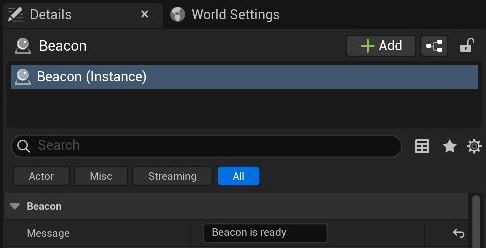
-
Open Window → Output Log and press Play. Search the log for
Beacon is ready. Unreal callsbegin_playand Python prints the value you set in Details.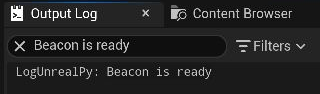
-
Stop play and save the level.
Use Beacon as a Blueprint parent
- In Python Classes, right-click Beacon and choose Create Blueprint class based on Beacon.
- Name it
BP_Beacon, select your Content folder, and click Create Beacon Class. Unreal opens the new Blueprint. -
Open EventGraph, right-click an empty area, and search for Get Message. Choose Get Message under Beacon. The node returns this actor’s Message because the Python method uses
@ue.ufunction.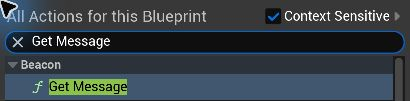
-
Click Compile, then save the Blueprint.
Next, build an interactable door to wire up Blueprint input and a Python event dispatcher. You can also try hot reload or add Python to a Blueprint you already use.