Project settings
Choose your text editor
Go to Edit → Project Settings → Plugins → Script Core → Text Editor. Unreal opens scripts in Visual Studio Code by default. You can choose Cursor, your system's default application, or the project's C++ IDE.
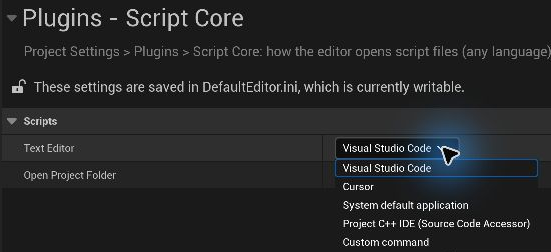
This setting applies when you create a Python class, create or open a script for a Blueprint, or double-click a class in the Python Classes folder.
Change UnrealPy settings
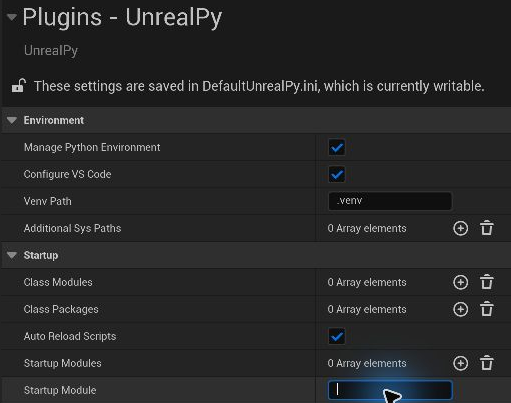
Go to Edit → Project Settings → Plugins → UnrealPy.
| Setting | When to use it |
|---|---|
| Manage Python Environment | Keep this on to install and sync project dependencies when you open the editor. Turn it off if your team manages its own environment. |
| Configure VS Code | Keep this on to let UnrealPy configure code completion for the project. |
| Venv Path | Choose which project virtual environment to load. The default is .venv. |
| Auto Reload Scripts | Reload UnrealPy scripts when you save changes. Enabled by default. |
| Class Modules, Class Packages | Register modules or packages that declare Unreal classes and live outside the default Python/scripts/ folder. |
| Additional Sys Paths | Add import folders outside the project's Python/ folder. |
| Startup Modules, Startup Module | Run Python when the editor or game starts. |
Restart the editor when a setting prompts you to. Unreal stores UnrealPy settings in Config/DefaultUnrealPy.ini so they can be shared with your project.