Packaging
Start with a Development build so you can run your game outside the editor and check the logs before making a Shipping build.
-
In Unreal Editor, save your levels and Blueprints. In Edit → Project Settings → Maps & Modes, check Default Maps → Game Default Map.
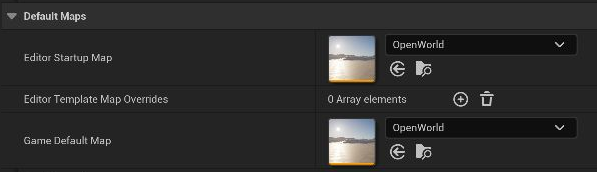
-
Add the Python packages your game needs to
[project].dependenciesinpyproject.toml. If you changed dependencies, restart the editor so UnrealPy can sync them before you build. - From your project folder, run the UnrealPy packaging command. See the command line reference for the launcher location.
unrealpy package                         # Development build into Saved/Packaged
unrealpy package --config Shipping       # a Shipping build
unrealpy package --archive-dir D:\Builds\MyGame
unrealpy package runs the Unreal build and stages Python and its runtime dependencies.
The environment
- The runtime environment is prepared in
Intermediate/UnrealPy/RuntimeVenvwithuv sync --no-devand staged from there. Your development.venvis left untouched and is not shipped. - It installs exactly what
uv.lockrecords (--locked) and never changes the lock. If the lock no longer matchespyproject.toml, packaging stops: start the editor once or rununrealpy env, then package again. - Put everything the game imports at runtime in
[project] dependencies. Dev tools do not ship. - Runtime dependencies must be regular packages, not editable installs.
--group NAME(repeatable) adds a dependency group to the staged environment.- A packaged game never initialises project files, installs uv or downloads anything.
Options
| Option | Effect |
|---|---|
--config |
Development, DebugGame, Test or Shipping. |
--archive-dir PATH |
Where to archive (default Saved/Packaged, relative to the project). |
--uat-arg=-flag, or anything after -- |
Extra BuildCookRun arguments. |
UNREALPY_STAGE_EXCLUDE |
Environment variable: paths under Python/ to leave out, separated by ;. |
Startup
Set Startup Module if you need a Python function to run once on game launch. See Run code at game startup.
Test the package
Open Saved/Packaged (or the archive folder you chose) and launch the Development build. Open a level that uses your Python code and exercise the same behavior you checked in Play In Editor. If a script fails only in the package, check its game log for a missing module or type.
For the interactable door, set the saved door level as Game Default Map before building. Start the packaged executable, press E, and verify that the door opens at the angle you set in Details. Press E again to close it. In the Development build, look for Door toggled on screen or in the game log to confirm the Blueprint received the dispatcher.
Run packaging on a build machine
Give the build machine the same engine and plugin builds as the team. Run from the checkout containing the .uproject and pass an archive directory that your CI system can collect:
unrealpy package --config Development --archive-dir Saved/CI/Development
Treat a failing command as a failed build and keep its log with the archive. Use the same door smoke test on the resulting executable before promoting the build.
Once the Development build works, package again with --config Shipping.